

Every free video editor promises the same thing: a finished video for nothing. The price is never the promise. It is the meter underneath it. One tool watermarks every export. Another caps you at 720p. A third deletes your project after three days. A fourth hands you credits that never come back. This comparison of the best free ai video editors 2026 checks eight tools on the vendors’ own pricing and help pages, checked October 2026, and states the free limit that actually stops a solo creator. No account was created to collect any of it, and where a vendor page did not state a limit, this article says so instead of guessing. If you searched for the best free ai video editor 2026 in the singular, or for the best free ai video editors 2025 2026 lists, the same names come up. What follows is what their free plans really allow.
Browse more in the AI Video category: AI Video
Quick facts, checked October 2026
- DaVinci Resolve: free desktop editor, up to 4K at 60 fps in 8-bit; Studio $295 one-time
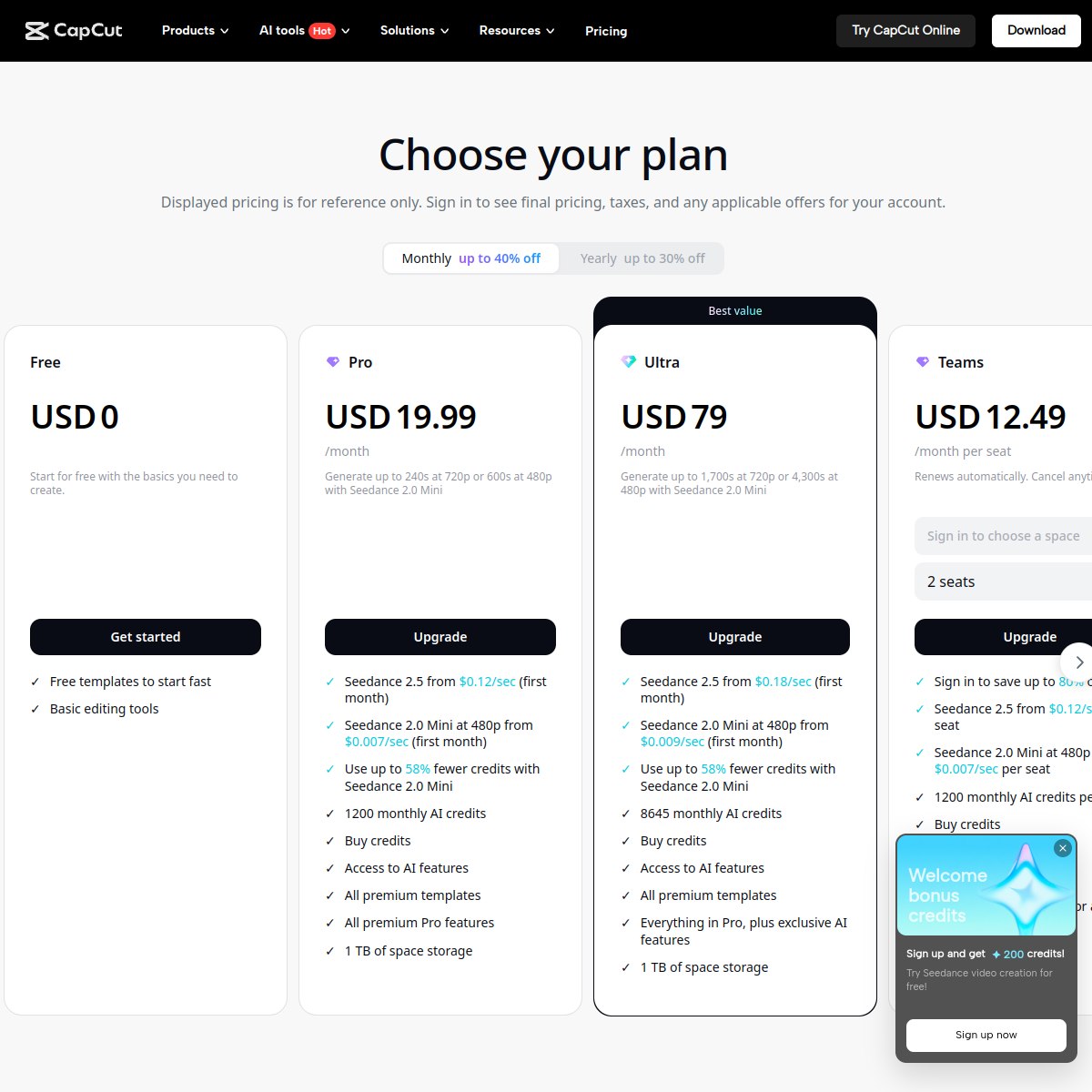
- CapCut: free 1080p watermark-free on clean manual edits; Pro $19.99 a month
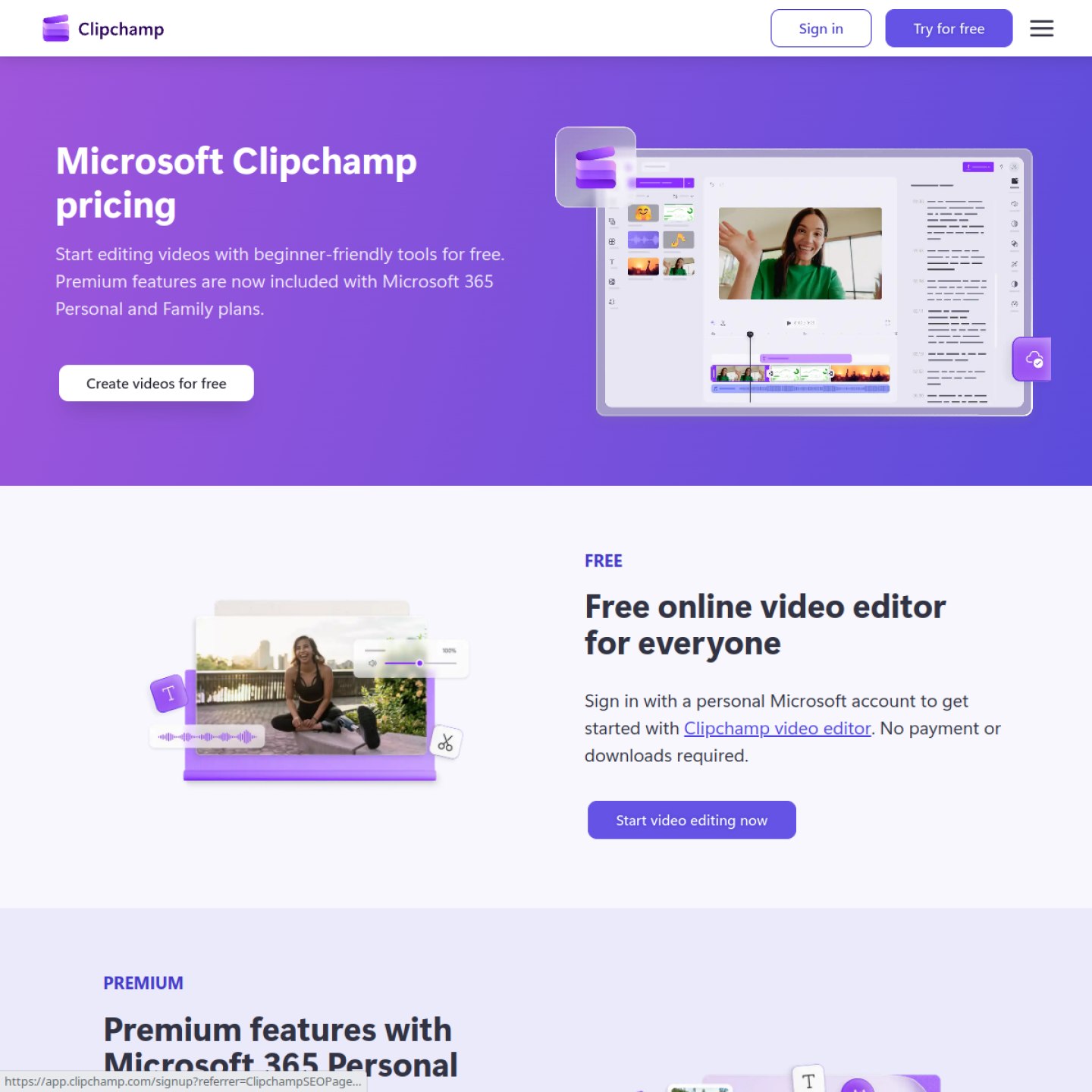
- Microsoft Clipchamp: free watermark-free exports up to 1080p, unlimited exports; premium features via Microsoft 365 from $9.99 a month
- Canva: free editor, watermark only on Pro assets; Pro price not confirmed in this check
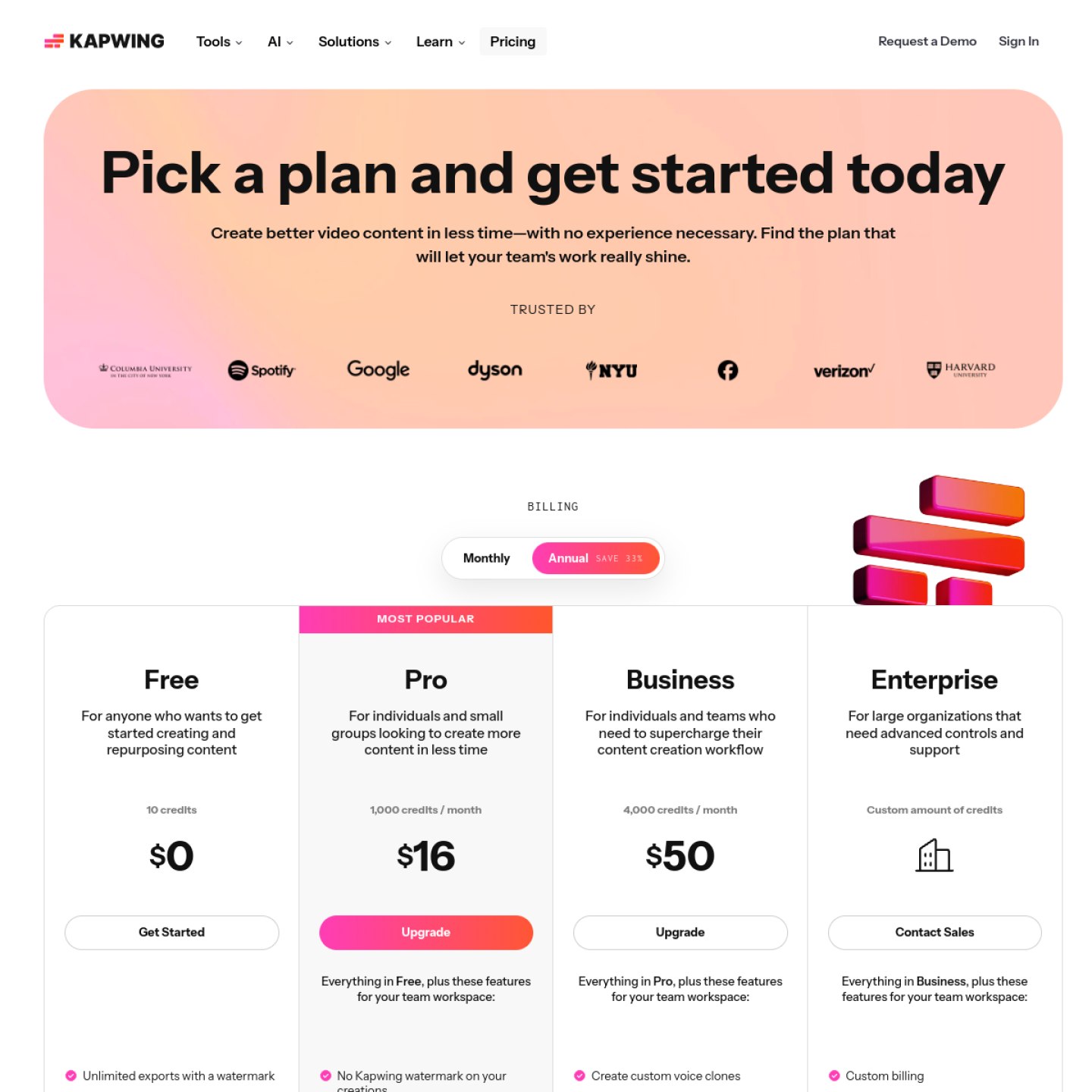
- Kapwing: free 720p watermarked exports, 10 lifetime credits, projects deleted after 3 days; Pro $24 a month
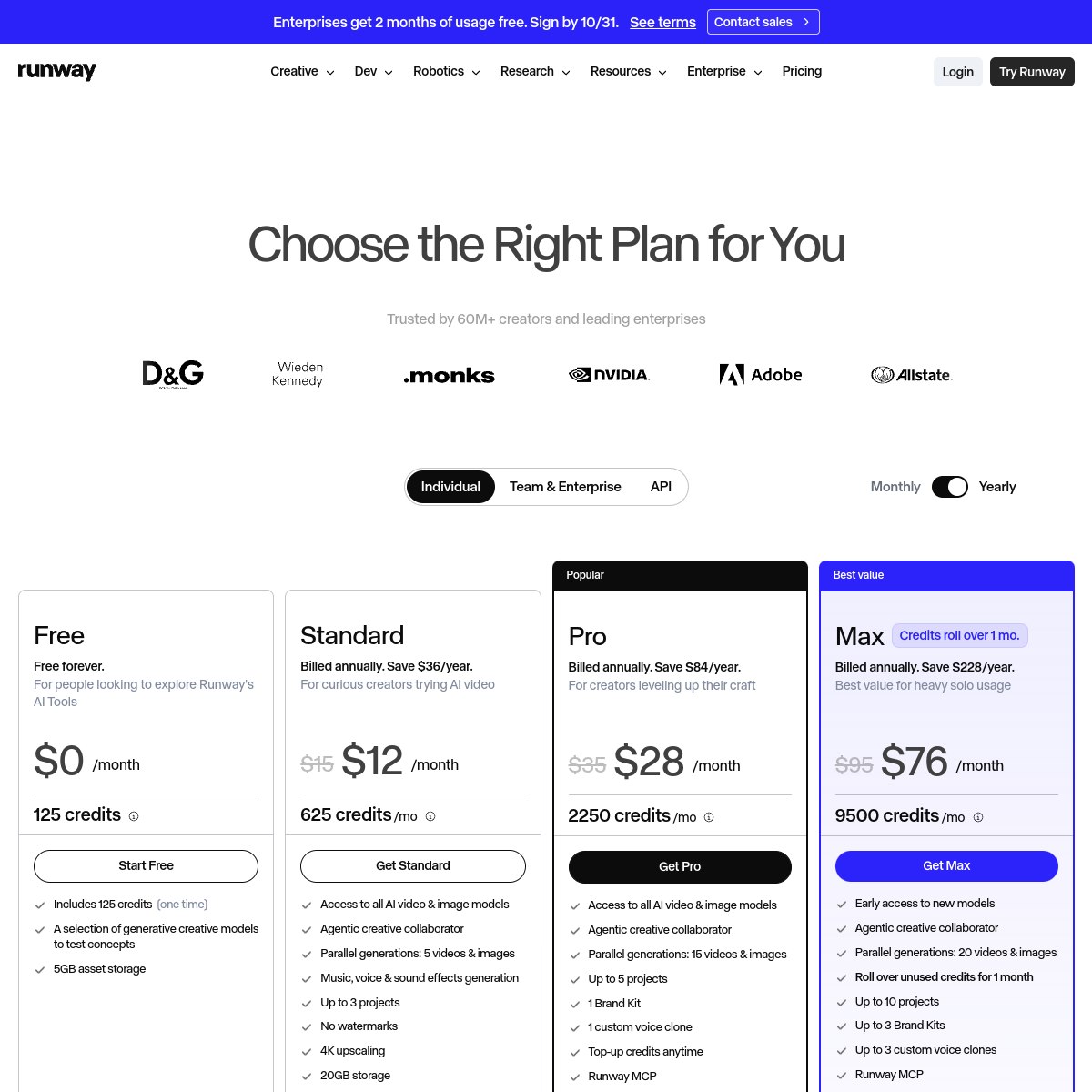
- Runway: free 125 one-time credits, watermarked; Standard $15 a month
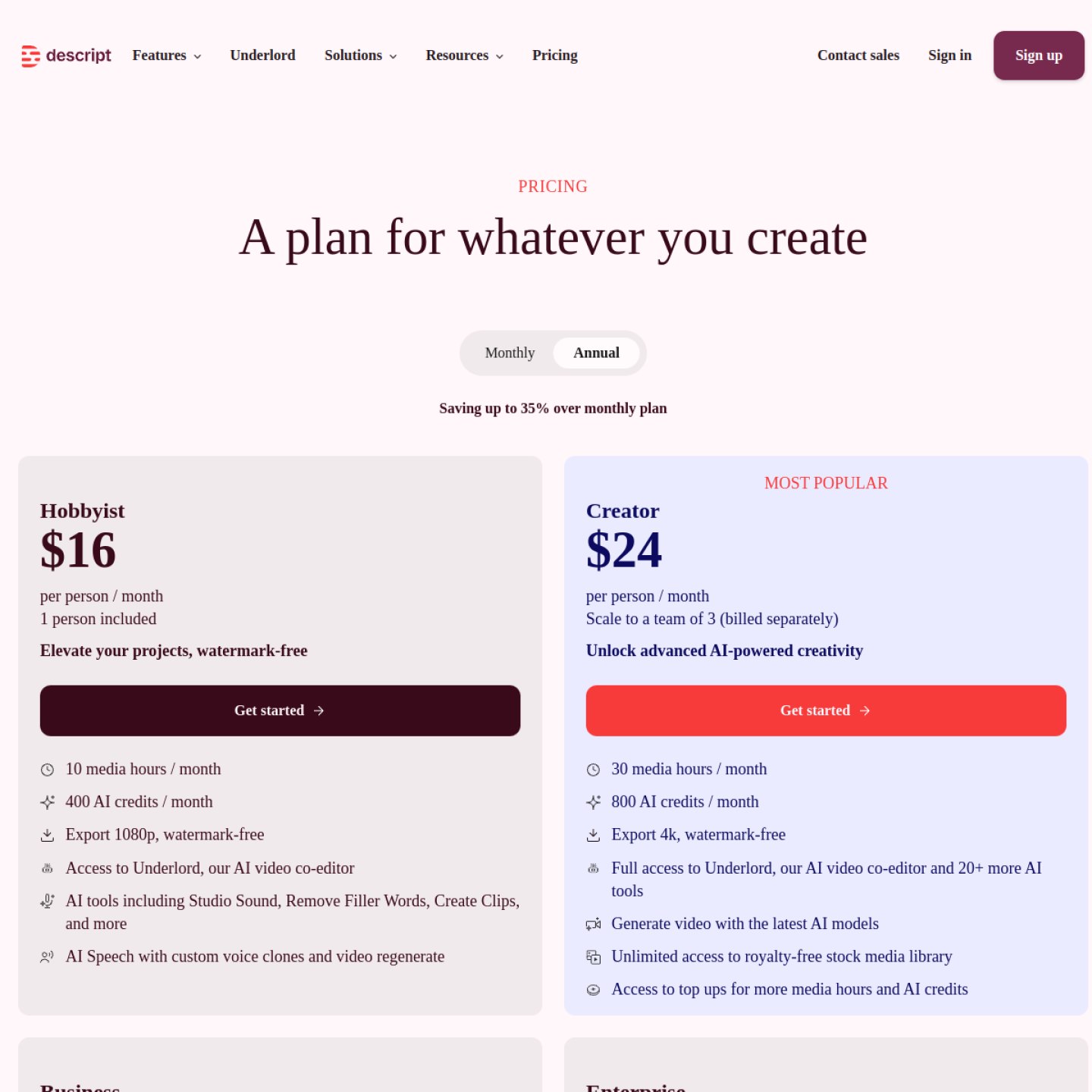
- Descript: free 60 media minutes a month, 100 one-time AI credits, 720p watermarked exports; Hobbyist $16 a month billed annually is the first paid step
- OpusClip: free up to 1080p, watermarked, 3-day export and storage expiry; Starter $15 a month
Two prices are deliberately not quoted as verified in this article: Canva Pro, because Canva’s pricing page never loaded its plan table during this check, and Descript’s monthly prices, because the pricing page in this check showed annual billing figures.
Best free ai video editors 2026 at a glance
| Tool | Free watermark | Free export ceiling | Core free meter | First paid step | Best job |
|---|---|---|---|---|---|
| DaVinci Resolve | Not stated on official pages | Up to 4K, 60 fps, 8-bit | None published (desktop software) | Studio $295 one-time | Full desktop editing |
| CapCut | None on clean manual edits; watermark with any Pro asset | 1080p safe free ceiling | No AI credits listed free; mobile exports over about 15 minutes trigger Pro | Pro $19.99 a month, $179.99 a year | Mobile and social edits |
| Microsoft Clipchamp | None, watermark-free exports free | Up to 1080p | No minutes, credits or export-count cap stated | Microsoft 365 Personal $9.99 a month | Windows and browser daily editing |
| Canva | Per Pro asset only | Not verified | Not verified | Pro, price not confirmed in check | Template-led social videos |
| Kapwing | Yes, every free export | 720p | 10 lifetime credits; 30 minutes of exports a month; projects deleted after 3 days | Pro $24 a month, $16 a month annual | Quick browser edits |
| Runway | Yes, every free video | Not stated on official pages | 125 one-time credits, never refresh | Standard $15 a month, $12 a month annual | Generating clips, not editing |
| Descript | Yes, bottom-right on Free exports | 720p | 60 media minutes a month plus 100 one-time AI credits | Hobbyist $16 a month billed annually | Talking-head and podcast editing |
| OpusClip | Yes, on captions and clips | Up to 1080p | Credits per source minute; 3-day export and storage expiry | Starter $15 a month | Podcast and long video clipping |
Read the table by the watermark column first. Only three tools in this list give you a clean export without paying: Clipchamp on every free export, CapCut on a clean manual edit, and DaVinci Resolve as a full desktop download whose pages simply do not mention a watermark.
A free editor is not free because it costs nothing. It is free only until the meter that matters to you runs out.
DaVinci Resolve
DaVinci Resolve is the only tool in this list that is a full professional editor with no published free meter. The free download edits and finishes up to 60 frames per second in resolutions as high as Ultra HD 3840 by 2160, in 8-bit formats, with extensive color grading tools, video collage, elastic wave audio retiming, and multi-user collaboration. There is no credit allowance to burn, no monthly minute cap on the official pages, and no project expiry rule published there.
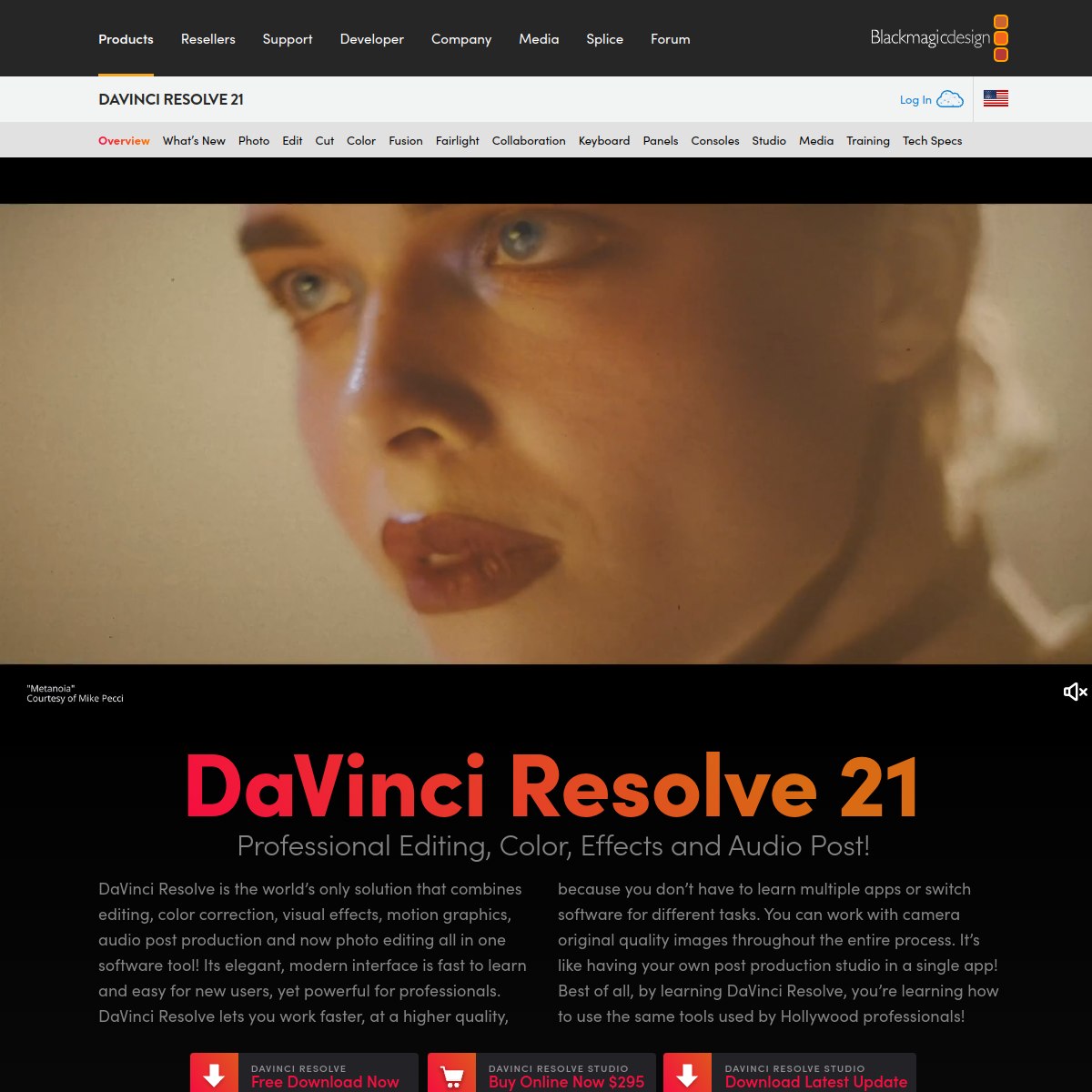
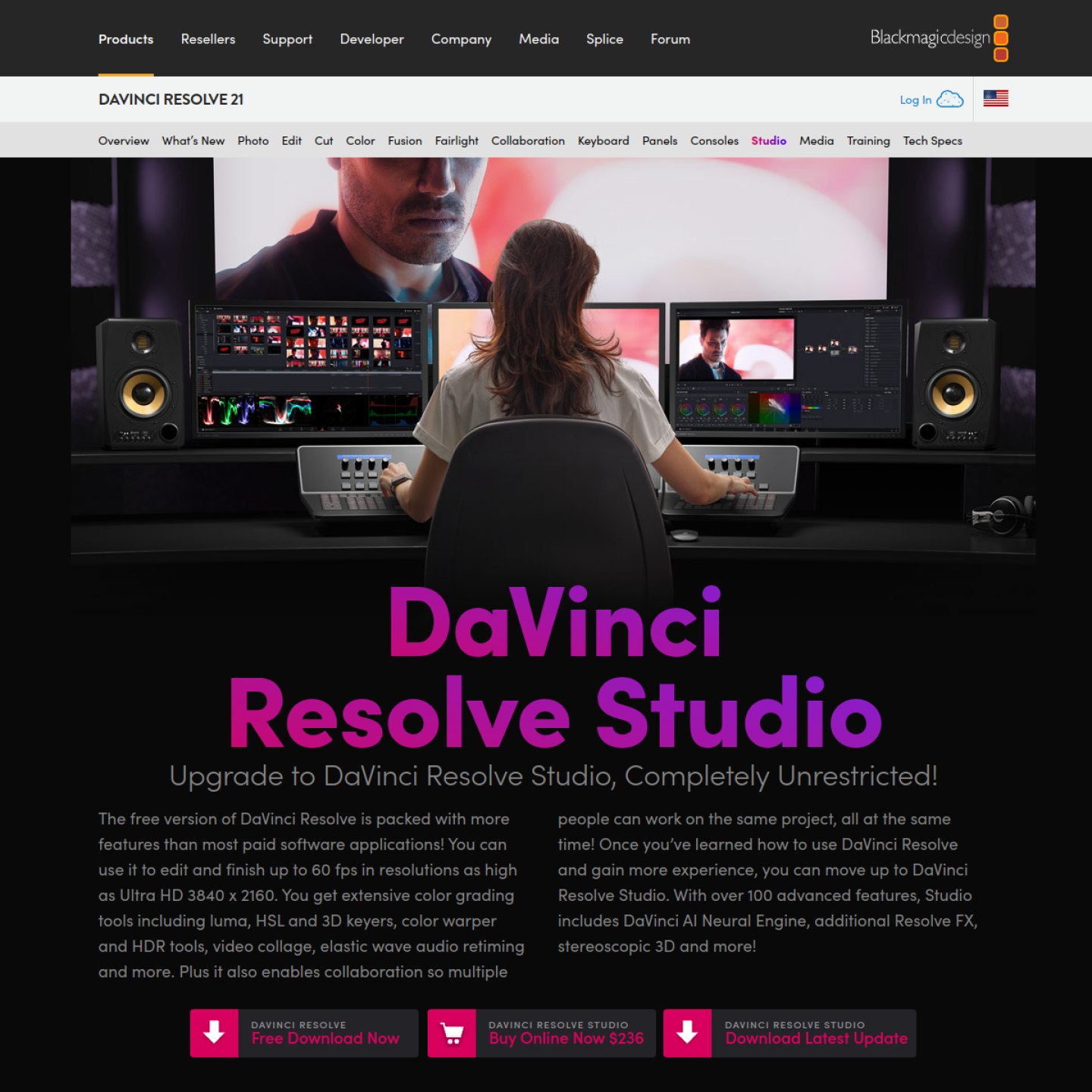
The walls are about footage and features, not about a meter. Studio, at $295 one-time, adds 10-bit video up to 120 frames per second, resolutions beyond 4K, the DaVinci AI Neural Engine with Magic Mask, SuperScale, Speed Warp, voice isolation and text-based editing, 45 extra Resolve FX, AI noise reduction, and Dolby Vision and HDR10+ delivery. A creator shooting 8-bit, finishing at 4K 60 fps or below, and not needing those AI tools does not hit a paywall in normal editing. One caution for honesty: Blackmagic does not use the word watermark on its product pages, so this article does not quote Blackmagic as promising watermark-free exports.
What we like
- Full professional editor free, up to 4K 60 fps
- No credit or minute meter published on official pages
- Multi-user collaboration and HDR grading included free
What could be better
- AI tools (Magic Mask, SuperScale, voice isolation, text-based editing) are Studio-only
- 10-bit footage and anything above 4K 60 fps need Studio
- Desktop install with a longer learning curve than a browser editor
CapCut
CapCut is the fastest social editor in this list, and also the one with the most traps. On a normal edit built from free assets, CapCut exports without a watermark, and 1080p is the safe free ceiling. Before exporting, delete the short CapCut ending clip the app adds to the timeline. That clean result is real, and it is the reason CapCut tops so many free lists.
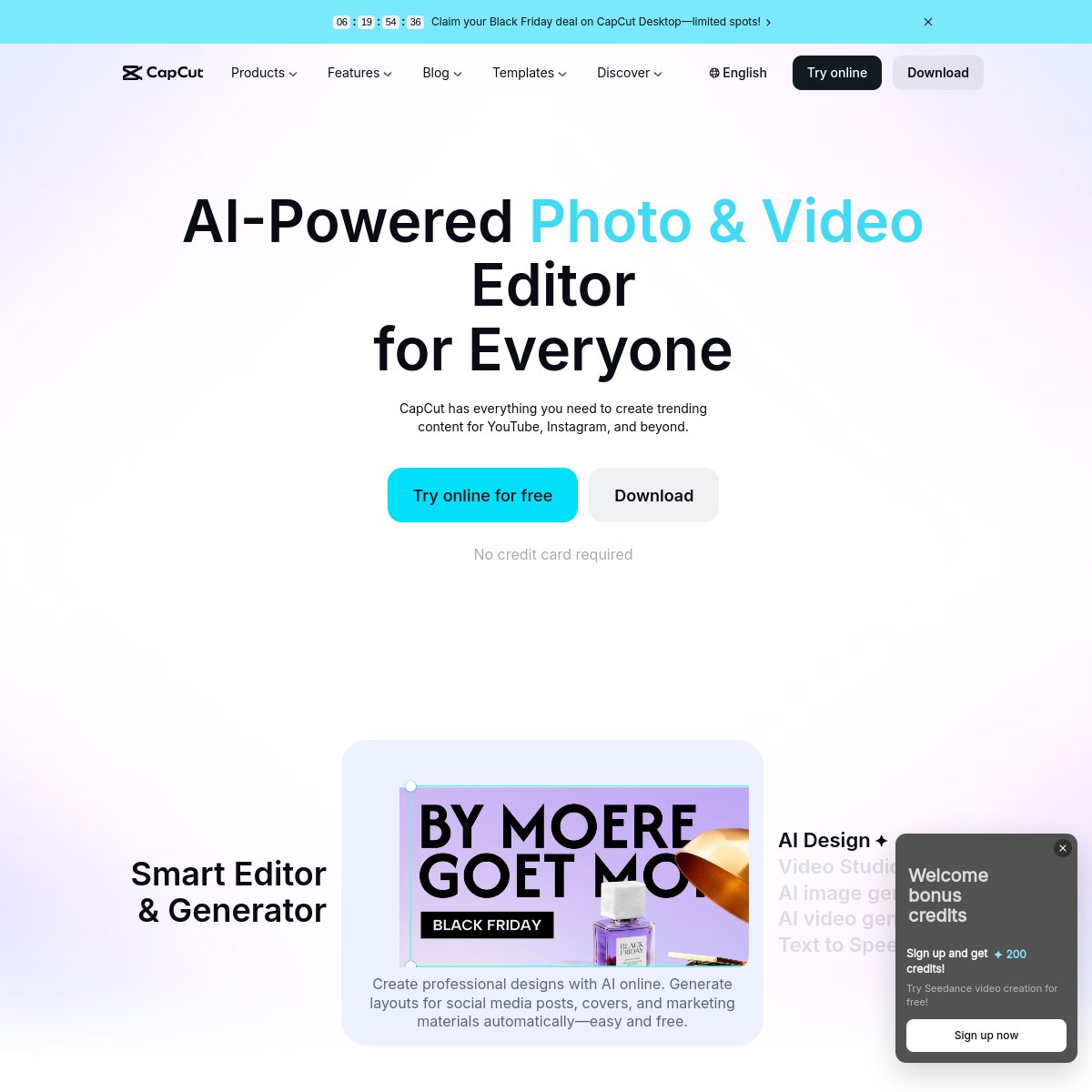
The traps are just as real, and they all come from CapCut’s own help pages. Any single Pro-marked template, effect, filter, transition, sticker, font, music track, or AI tool blocks a clean export or watermarks it, even at 1080p. On desktop, the 4K, 60 fps, and No Watermark options show greyed out or locked for free users. On mobile, exports longer than about 15 minutes trigger the Pro prompt, with CapCut stating the free limit varies by region. The old 1 GB free cloud allowance ended in August 2024, so cross-device project sync is a workflow wall, and no current free storage figure is published. Pro costs $19.99 a month or $179.99 a year, and adds 1,200 monthly AI credits, all premium templates and features, and 1 TB of storage.
What we like
- Fastest social edits, with templates and captions
- Clean 1080p export free on manual edits from free assets
- Works on mobile, desktop, and web
What could be better
- Any Pro asset watermarks or blocks the export, even at 1080p
- 4K and 60 fps locked behind Pro on desktop
- Free cloud storage allowance ended in August 2024, no new figure published
Microsoft Clipchamp
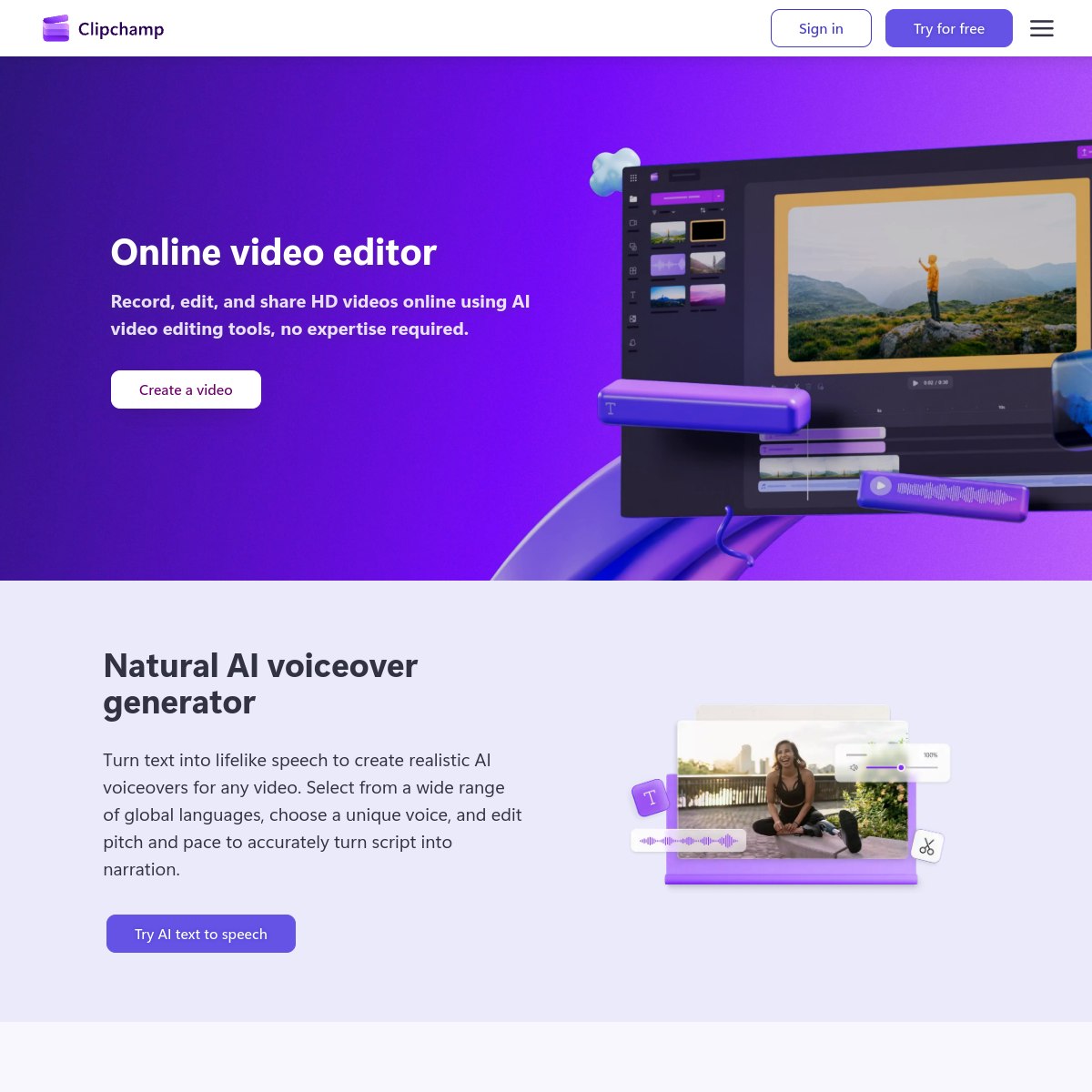
Clipchamp is the safest free daily editor in this list, because its free plan has the fewest traps. Free exports are watermark-free up to 1080p, and the pricing page says free users can work on and export as many videos as they like. No minutes cap, credit cap, or export-count cap is stated on the official pages. The free AI set is generous: automatic transcript with embedded captions and optional SRT download, AI text to speech, auto-compose from your own footage, image background removal, auto-cut for pauses, and noise suppression.
The walls are hard paywalls, not usage caps: 4K export, premium stock, premium templates and filters, and the brand kit. One flag to state plainly: the detailed Support comparison reserves cloud content backup for standalone Premium, while the marketing pricing page table lists backup as Included for Free, so a free user switching computers should carry and relink local media files. Premium features come with qualifying Microsoft 365 Personal and Family subscriptions, with Personal at $9.99 a month or $99.99 a year.
What we like
- Watermark-free 1080p exports with no stated export-count cap
- AI captions, text to speech, auto-compose, and noise suppression free
- Built into Windows 11, installable from the Store on Windows 10, plus web
What could be better
- 4K export and premium stock, templates, and filters are paid-only
- Brand kit is paid-only
- Cloud backup wording differs between the Support table and the pricing page table
Canva
Canva is a design tool first and a video editor second, and its free plan should be judged that way. The video editor is included, and the watermark rule is the fairest in this list in one specific sense: it is per Pro asset, not a blanket stamp. Canva’s own licensing page says a free user sees a watermark on Pro content, identified by a crown icon, and can remove it by buying that asset once or by subscribing to Pro. As a Pro user, there is nothing more to pay and no watermarks. A video built only from free elements and your own uploads is not described on that page as watermarked.
The honest gap in this section is price. Canva’s pricing page never loaded its plan table during this check, returning an unsupported-client page instead, so no Pro price is quoted here as verified. Recent third-party checks of the same page disagree between yearly figures, which is exactly why this article does not pick one. The same applies to the reported free limits (storage, AI uses, video resolution, text-to-video credits): they are reported elsewhere but were not readable on Canva’s own pages in this check, so they are left out rather than printed as facts. For a solo creator, Canva’s free job is template-led social video and brand-consistent posts, where the template library does the work and the watermark rule only bites when a Pro asset slips into the design.
What we like
- Template library makes social video fast for non-editors
- Watermark only on Pro assets, removable per asset without subscribing
- Brand workflow suits a one-person business
What could be better
- Video is secondary to design, not a full timeline editor
- Pro price and free AI and resolution limits were not verifiable on Canva’s own pages in this check
- One Pro asset anywhere in the design leaves a watermark until that asset is bought on its own or a subscription starts
Kapwing
Kapwing is a browser editor with no install, and the harshest free walls in this list after Runway. Free exports are watermarked, every one of them, capped at 720p, at most 4 minutes per video, and 30 minutes of exported video per month in total. Storage is 5 GB. The sharpest rule is expiry: free projects are stored for 3 days only, then deleted, and only 3 projects per folder stay accessible, with each new project locking the oldest.
The meter that runs out first is credits. Free gives 10 credits for life, not per month, and auto-subtitling costs 1 credit per minute, so about 10 minutes of captions spends the whole allowance. Text to speech runs to 1 minute free, and auto-translate and Clean Audio to 5 minutes each. Kapwing offers no trial of its paid plans. Pro costs $24 a month or $16 a month billed annually, and adds no watermark, uploads up to 6 GB, exports up to 2 hours, 200 GB of storage, and 1,000 credits a month. Two official-page conflicts are worth stating: the pricing table extracts free uploads as 2 GB while two help articles say 250 MB, and the pricing page says Pro exports in 4K while the Pro FAQ says 1080p.
What we like
- Browser editor, no install, fast for quick edits
- Captions, Clean Audio, and translation available free within caps
- Unlimited project starts, though only 3 stay accessible per folder
What could be better
- Watermark on every free export, capped at 720p
- 10 lifetime credits, gone after about 10 subtitle minutes
- Free projects deleted after 3 days
Runway
Runway is not a timeline editor. It is a generative studio that turns text or images into short video clips, and its free plan is a trial of generation, not a seat for editing. Free gives 125 credits once, and those credits do not expire, renew, or refresh. Once they are spent, the free tier is over, and free users cannot buy more credits. Every free video carries a Runway watermark, the model selection is limited and changes over time, and storage is 5 GB.

Why the free plan runs out so fast becomes clear from the credit numbers. Runway’s own examples put Gen-4.5 at 12 credits per second, and the Standard plan’s 625 credits a month equal 52 seconds of Gen-4.5, 104 seconds of Gen-4 Turbo, or 78 images at 1080p. Standard costs $15 a month or $12 a month billed annually, and adds all models, 625 credits a month, no watermarks, 4K upscaling, up to 3 projects, and 20 GB of storage. The pricing page assigns project caps starting at Standard and lists no project allowance for Free, which confirms the free tier is for testing generations, not for assembling and reworking multiple projects.
What we like
- Generate clips from text or images without footage
- Free credits never expire, so there is no monthly pressure to spend them
- Standard unlocks all models and removes watermarks
What could be better
- It builds clips but assembles no full edit on a timeline
- 125 one-time credits end permanently, with no top-up on Free
- Watermark on every free video, and the free model list changes
Descript
Descript edits video by editing a transcript, and for talking-head YouTube videos and podcast clips that workflow is the whole reason to use it. Delete a sentence in the transcript and the video cut follows. One long recording can swallow most of the free month, because the 60 media minutes count raw uploads and recordings alike, whether transcription happens or not. AI credits are 100, one time, never refilled, and every AI tool on Free is marked Limited, from Underlord and Studio Sound to Remove Filler Words, caption translation, and dubbing.
Free exports are watermarked in the bottom-right corner and capped at 720p, with a 1-hour web-link duration cap and unlimited audio export. Storage is 5 GB, max upload is 1 GB, recording sessions run 2 hours, and stock search shows only the first 5 results, while dynamic captions are listed as Unlimited on all plans including Free. Paying starts at Hobbyist, $16 a month on annual billing: 10 media hours a month, 400 AI credits a month, watermark-free 1080p export, while top-ups for extra minutes and credits stay limited to Creator and Business. The monthly Hobbyist price is not quoted here because the pricing page in this check showed annual billing.
What we like
- Transcript editing makes talking-head cuts fast
- Filler removal, Studio Sound, and dynamic captions included in the workflow
- No credit card required for Free
What could be better
- Free exports watermarked and capped at 720p
- 60 media minutes count raw footage, including takes that get cut
- 100 AI credits are one-time and never refill
OpusClip
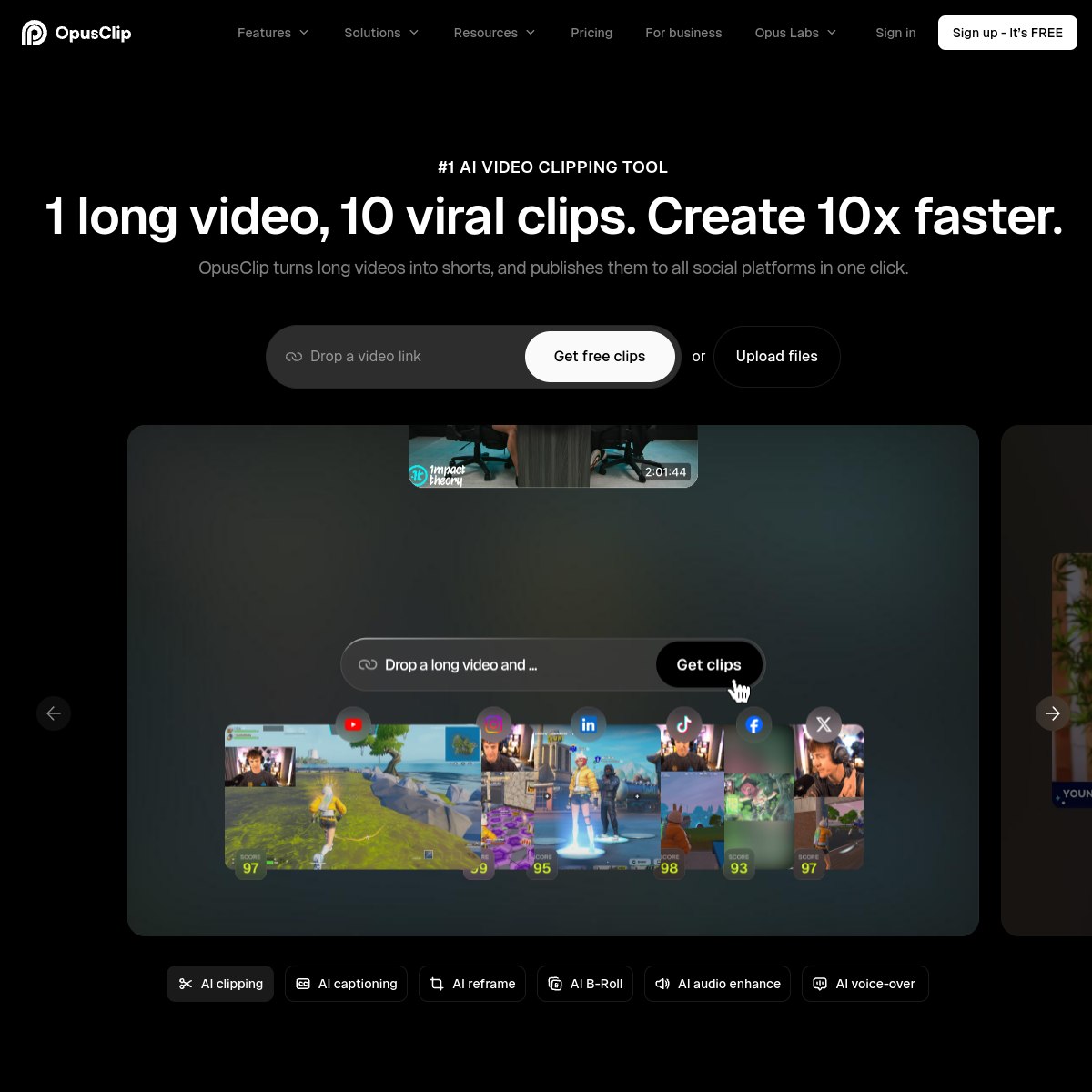
OpusClip does one job: it takes a long video, a podcast, an interview, or a webinar, and cuts it into vertical short clips with animated captions and reframing. The free plan gives that job a hard deadline. Media storage expires after 3 days, MP4 export carries a 3-day limit, and clips render up to 1080p in 9:16 only, with a watermark on captions and clips. There is no text and timeline editor on Free, no Virality Score, no scheduler, and no social posting, though Free still includes shareable links, auto hook, multi-language transcription, auto emoji and keyword highlights, layouts that switch on their own, and layouts for screenshare and gameplay.
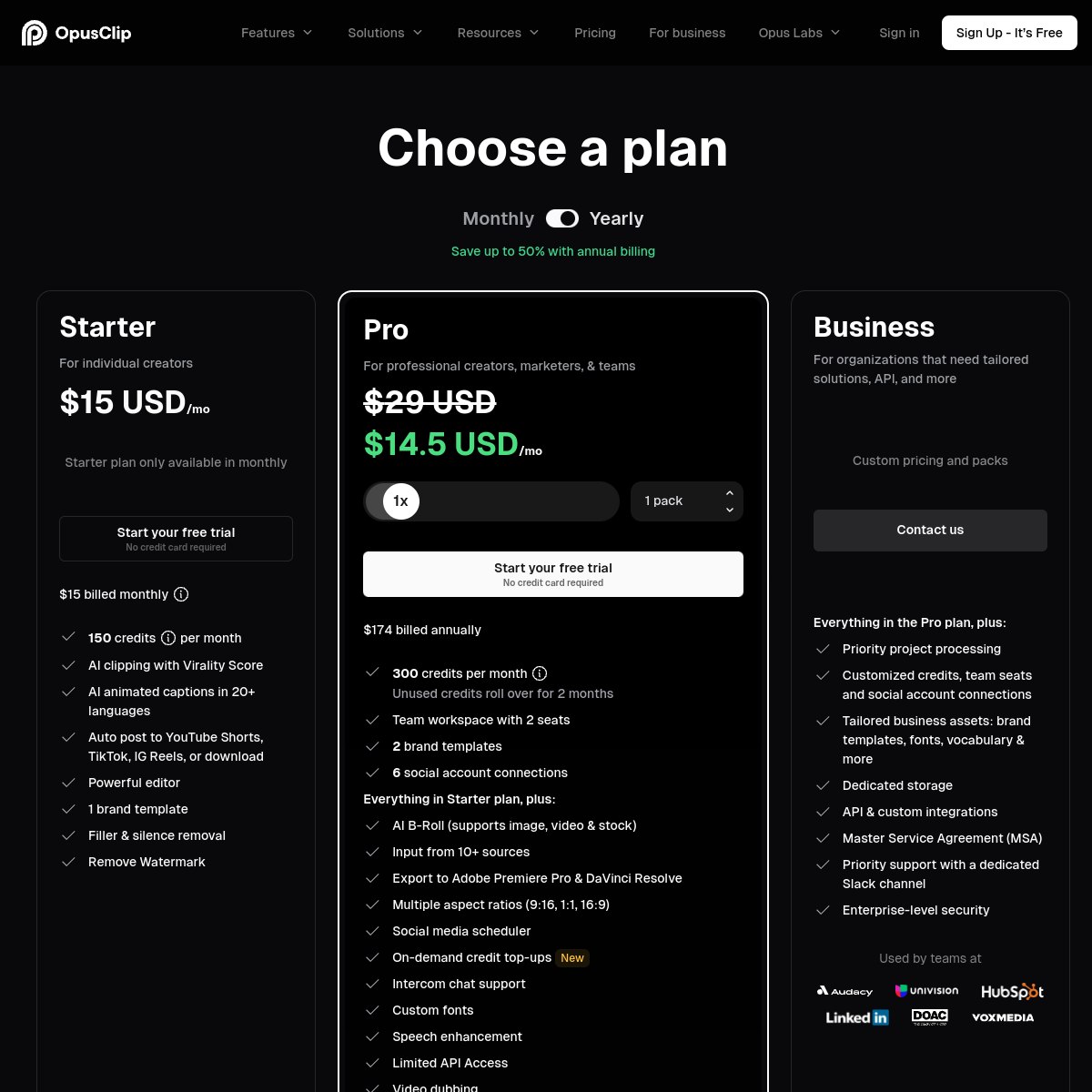
OpusClip bills credits by imported source minute: under a minute counts as one credit, part minutes round down. The Free allowance itself never appears on the fetched pricing page or help snippet, so no Free credit number is printed here. Starter costs $15 a month and adds faster processing, auto import from a verified YouTube account, Virality Score, text and timeline editing, watermark-free export, a 30-day MP4 limit, and storage expiring after 29 days. Pro costs $29 a month and adds 100 GB fixed storage, 9:16, 1:1, and 16:9 ratios, the scheduler, and a team workspace. The 3-day expiry is the sharpest wall: anything not exported within 3 days is gone from the free tier, regardless of credits.
What we like
- AI picks clips, captions, and reframes long videos into vertical shorts
- Up to 1080p renders on Free, with shareable links
- Quickest way to turn one podcast episode into a week of shorts
What could be better
- Media and exports expire after 3 days on Free
- Watermark on free clips, and no editor to clean them up
- 9:16 only on Free, with no scheduler or social posting
Two more names you will see
VEED has a genuine free plan at $0, with watermarked exports, 10 video minutes a month, and 2 minutes of auto subtitles included. Its Lite plan costs $19 a month or $9 a month billed annually, per VEED’s own blog page, since the pricing-page table did not render in this check. Every free export from Filmora carries a watermark, even though the download is free with no stated time limit, full basic editing, and a limited allocation of 100 AI credits, and its Basic plan costs $49.99 a year, with no monthly editor price shown on the official shop page.
Is CapCut still free, and what are its downsides
Yes, CapCut is still free. The free plan costs $0 and includes free templates and basic editing tools. The downsides are the ones this article verified on CapCut’s own help pages: any Pro-marked asset watermarks or blocks the export even at 1080p, 4K and 60 fps are locked behind Pro on desktop, free cloud storage ended in August 2024 with no new figure published, mobile exports over about 15 minutes trigger the Pro prompt, and no free caption limit is published. To avoid paying, build manual edits from free assets only, delete the ending clip before exporting, stay at 1080p, keep mobile exports under about 15 minutes, and keep projects local rather than relying on cloud sync. If those rules feel too tight, Clipchamp gives watermark-free 1080p without asset traps, DaVinci Resolve gives full desktop editing free, and Canva suits template-led brand videos under its per-asset watermark rule.
Desktop or browser, and Windows 10
Desktop editors (DaVinci Resolve, CapCut’s desktop app, Filmora) install on your computer and hold your projects locally, which suits long edits and large files. Browser editors (Kapwing, Canva, Runway, Descript, OpusClip) run in the browser, so the operating system matters less and the project lives in the cloud, which is exactly where expiry rules like Kapwing’s 3-day deletion and OpusClip’s 3-day storage limit bite. For Windows 10 specifically, Clipchamp installs from the Microsoft Store rather than arriving pre-installed as on Windows 11, and its web version runs in Edge or Chrome. For the best free ai video editor apps 2026 question, CapCut’s mobile app and Canva’s apps cover phone-first creation, while Clipchamp’s web version and Kapwing cover browser-first work. If you are on Windows 10 and want the simplest free route, Clipchamp’s Store install plus its watermark-free 1080p exports is the shortest path in this list.
What Reddit users actually recommend
Reddit threads on this query keep coming back to one rule: export only from a tool whose free tier does not watermark. That rule points to Clipchamp and to clean CapCut edits at 1080p, and away from free exports from Kapwing, Runway, Descript, and OpusClip. It also explains why one popular claim should be treated with suspicion: claims you will see that CapCut’s desktop version is watermark-free up to 4K or even 8K are contradicted by CapCut’s own help pages, which lock 4K, 60 fps, and watermark removal behind Pro for free users.
The useful Reddit habit is the workflow, not the hype: use a watermarking tool only for the step before export, like generating captions or cutting clips, and take the finished file out of a tool whose free export is clean. Judged that way, the discussion lands where this article lands: Clipchamp for the finished file, CapCut for clean social cuts, DaVinci Resolve for full edits.
How we checked
Every price, limit, and plan detail here comes from the vendors’ official pages, checked in October 2026, and the screenshots are those same pages. No account was created, and no affiliate link is used.
Our verdict
Clipchamp is the safest free daily editor for most solo creators, with watermark-free 1080p exports and no stated export-count cap, while DaVinci Resolve is the strongest free full editor for anyone willing to install desktop software. CapCut is the best free mobile and social editor as long as every asset in the edit is free and the export stays at 1080p. Descript is the pick for talking-head and podcast editing by transcript, and OpusClip is the pick for turning one long video into a week of vertical shorts, with its 3-day expiry as the price of free.
Canva suits template-led brand video, Kapwing suits a same-day browser edit, and Runway suits generating a clip rather than editing a video. If price alone decides, start with Clipchamp for finished files and DaVinci Resolve for full edits, and pay only when a specific wall, 4K, watermark removal, or a longer meter, is the thing your work actually needs.
Frequently asked questions
Is there a totally free AI video editor?
Yes, with one honest qualifier. DaVinci Resolve is a full desktop editor with no published free meter, and Clipchamp exports watermark-free up to 1080p with no stated export-count cap. Both are genuinely free for finished videos. The rest of this list is free with a visible catch: a watermark, a resolution cap, a credit meter, or an expiry date. For the best ai video editors free trial 2026 question, Runway’s 125 one-time credits and Descript’s watermarked 720p exports behave more like trials than like permanent free plans.
Is CapCut still free?
Yes. CapCut’s free plan costs $0 and includes free templates and basic editing tools. Clean manual edits from free assets export without a watermark at 1080p, after deleting the auto-added ending clip. What is not free is 4K and 60 fps export on desktop, watermark removal on videos using Pro materials, and the premium templates, effects, and AI tools, which are Pro-gated.
Is CapCut or Canva better?
It depends on the job. CapCut is better for fast social edits from your own footage, with templates, captions, and a mobile app, as long as every asset is free and the export stays at 1080p. Canva is better for template-led brand videos and design-led posts, where the template library does the work and the watermark rule only bites on Pro assets, identified by a crown icon. For a clean finished file with no asset traps, Clipchamp beats both on its free plan.
Which free video editor suits YouTubers best?
For talking-head YouTube videos, Descript’s transcript editing is the fastest way to cut silences and filler, but its free exports are watermarked at 720p, so it is a trial of the workflow rather than a publishing plan. If the video must be finished and free, DaVinci Resolve is the strongest full editor here; if it must be watermark-free with the least effort, Clipchamp at 1080p is the simplest route. For Shorts from a long video, OpusClip is the specialist pick, as long as clips are exported within its 3-day free window.
Sources: Blackmagic Design DaVinci Resolve product and Studio pages; CapCut pricing and help pages; Microsoft Clipchamp pricing and Support pages; Canva licensing page; Kapwing pricing and help pages; Runway pricing and help pages; Descript pricing and export help pages; OpusClip pricing page; VEED pricing FAQ and official blog page; Wondershare Filmora shop and FAQ pages. All checked October 2026.